 PairOnce
PHONE → COMPUTER · SCANNED PDF
Scan a document with your phone and send the PDF to your computer
Connect your phone and computer at paironce.com, open the + menu on the phone and choose Scan a document, then take a photo of the page.
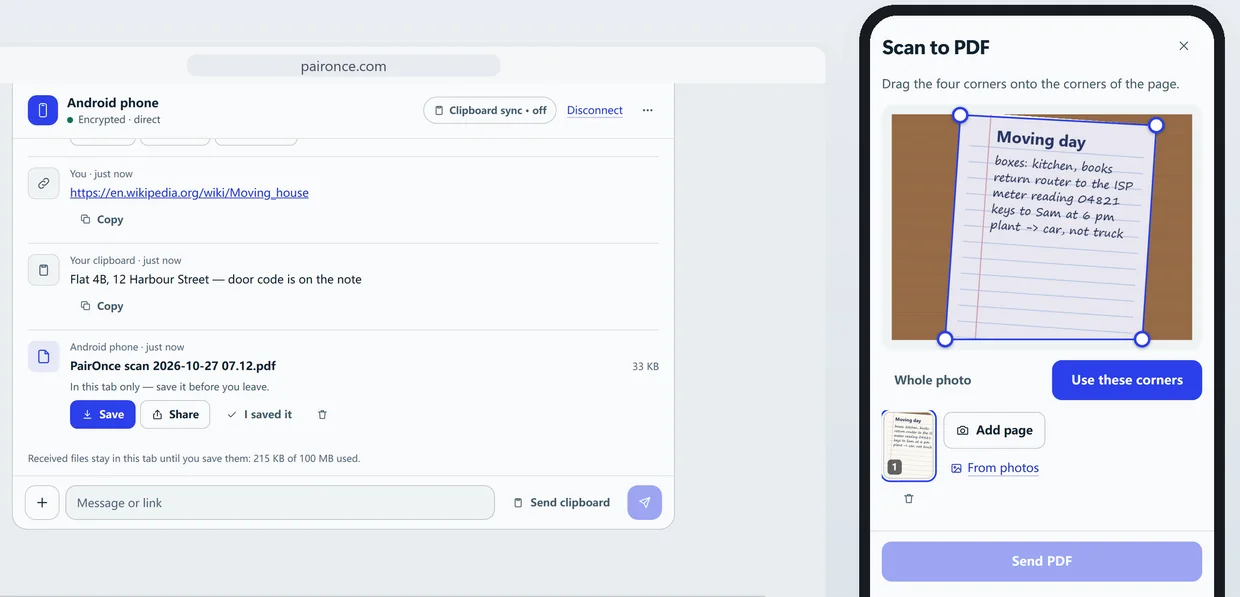
Drag the four corners onto the page, tap Use these corners, pick Document, Colour or Black and white, add more pages if you need them, and tap Send PDF.
The PDF is made on your phone and the computer accepts it before it arrives. A free PDF holds up to 5 pages.
Step by step
- Connect the phone and the computer once. Open paironce.com on both. Scan the QR code with the phone (or choose Enter a code and type the six digits), check that both screens show the same safety code, and approve with Approve device. A page opened from a QR code or link asks you to confirm first: tap Connect.
- Start the scan on the phone. Open the + menu and choose Scan a document, or use the Scan a document button on the empty screen. Take a photo of the page on a flat, well-lit surface; you can add photos you already have with From photos.
- Put the corners on the page. Drag the four corners onto the corners of the page, or tap Whole photo to keep everything, then tap Use these corners.
- Choose how it looks. Pick Document, Colour or Black and white. If the page is sideways, tap Turn the page; to go back and move the corners, tap Adjust corners.
- Add more pages if you need them. Tap Add page for the next sheet, and repeat the corners and the look. A free PDF holds up to 5 pages.
- Send the PDF. Tap Send PDF (it shows the page count). On the computer, choose Accept when the file is offered, then Save to keep it.
- Make it searchable (optional). Under the received PDF on the computer, tap Make searchable, choose the Language of the text and tap Read the text. PairOnce reads the words on the computer itself and offers a searchable copy to Save: you can search it and copy text from it.
Your photos stay on the phone
The pages are straightened, filtered and put into the PDF on your phone. Only the finished PDF is sent, encrypted, to the computer, which has to accept it first.
What kind of PDF you get
Each page is a sharp image inside the PDF, ready for printing, sending and signing.
The file is named like “PairOnce scan 2026-10-24 14.32.pdf”, so your scans sort by date. It stays in the PairOnce page on the computer until you save it, so save the ones you want to keep.
Longer documents
A free PDF holds up to 5 pages at standard resolution. PairOnce Pro makes PDFs of up to 100 pages at the photo’s own resolution. Without Pro, send the first PDF and scan the rest as a second one.
Limits, and when this is not the right tool
- A file can be up to 2 GB over a direct connection when the receiving browser saves straight to disk (Chrome or Edge on a computer or Android, Firefox on a computer, Safari on iOS 26 or later). Other browsers take up to 50 MB per file and hold 100 MB of received files at a time.
- Files over 2 GB need PairOnce Pro on one of the two devices. Then a file can be up to 10 GB, received the same way, and the relay carries 5 GB a month.
- When the two devices cannot reach each other directly, an encrypted relay carries the data. Each device can send and receive 200 MB a month that way, counted together; a direct connection has no monthly limit.
- Both pages must stay open until everything has arrived: keep the phone’s screen on and the browser in front.
- PairOnce moves things between two devices that are open at the same time. It is not cloud storage: nothing waits on a server for later.
Other ways to do it
- The Notes app on iPhone. Apple’s Notes can scan text and documents with the camera (Apple’s guide). Good if the document stays on your iPhone or Apple devices; to get it to a PC you still have to share the result.
- Google Drive on Android. The Drive app has a camera button that scans a page and saves a searchable PDF in your Drive (Google’s help page). You then open Drive on the computer.
- Email it to yourself. Works everywhere, but it takes more steps, and the scan then sits in your inbox.
Common questions
Do I need a scanner app?
No. PairOnce runs in the browser on both devices, and the scanner is part of the page. You connect once with a QR code.
Can I search or copy the text in the PDF?
The PDF keeps each page as a sharp image, which is what printing, sending and signing need; the text itself is not searchable.
How many pages can one PDF have?
Up to 5 on the free plan, and up to 100 with PairOnce Pro. If you reach the limit, send that PDF and start a second one.
Where does the PDF end up on the computer?
It arrives as a file in the PairOnce page. Choose Save to keep it; if you close the page without saving, it is gone.
Is the scan private?
The photos stay in your phone’s browser. Only the finished PDF goes to the computer, encrypted between the two devices, and the computer has to accept it first.