 PairOnce
PHONE ↔ COMPUTER · CLIPBOARD
Copy on your phone, paste on your computer (and back)
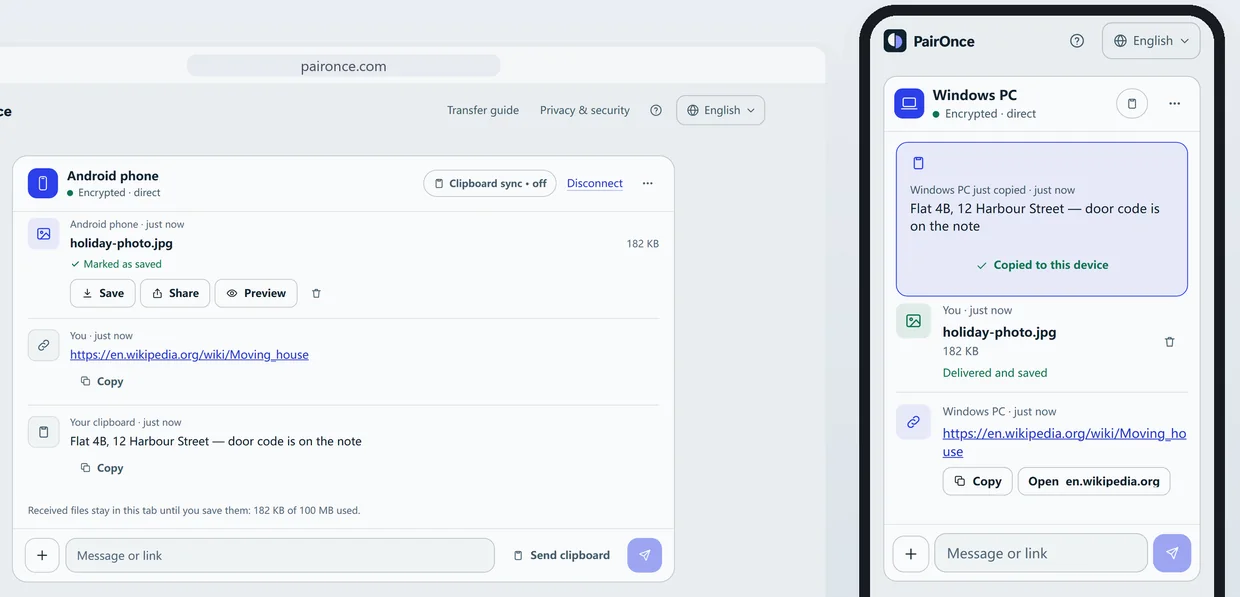
Connect the two devices once at paironce.com, then open the + menu on one of them and choose Clipboard: what you copied is sent, encrypted, to the other device.
There it appears at the top with a Copy button; tap it and paste anywhere as usual.
It works between iPhone, Android, Windows and Mac in any browser, with no account. Apple’s Universal Clipboard only links Apple devices, and Windows’ own sync is tied to a Microsoft account.
Step by step
- Open PairOnce on both devices and connect once. Go to paironce.com on both. On one, scan the QR code with the other (or choose Enter a code and type the six digits), check that both screens show the same safety code, and approve with Approve device. A page opened from a QR code or link asks you to confirm first: tap Connect.
- Copy the text on the first device. Copy as you always do: Ctrl+C on Windows, Cmd+C on a Mac, or Copy in the menu on a phone.
- Send it. In PairOnce, open the + menu and choose Clipboard, or tap Send clipboard next to the message box. If the browser asks to let the page read the clipboard, allow it.
- Paste it on the other device. The text arrives pinned at the top with a Copy button. Tap Copy, then paste where you need it.
Make it automatic where the browser allows it
Open Clipboard sync (the button in the header; it reads “Clipboard sync · off” until you turn something on). It has two switches, both off until you turn them on, and each is kept per paired device.
The first sends what you copy when you come back to the page. A page can read the clipboard on its own only in some browsers, mostly Chromium browsers on a computer such as Chrome and Edge; in Safari and Firefox you tap Send clipboard each time. The second puts what arrives on your clipboard; it works while the page is in front, otherwise tap Copy.
Anything that looks like a password or a key is not sent automatically. You can still send it by hand.
Pictures and what is kept
If you copied a picture, Send clipboard sends it as a file (PNG, JPEG, GIF or WebP) that the other device accepts first with Accept. Text can be up to 128 KB per message.
Clipboard items go only between the two devices, encrypted, and are never stored on a server. The last 3 items of the connection are listed in Clipboard sync and cleared when you disconnect or close the page. With PairOnce Pro the last 50 are kept in your own browser until you clear them.
Limits, and when this is not the right tool
- A file can be up to 2 GB over a direct connection when the receiving browser saves straight to disk (Chrome or Edge on a computer or Android, Firefox on a computer, Safari on iOS 26 or later). Other browsers take up to 50 MB per file and hold 100 MB of received files at a time.
- Files over 2 GB need PairOnce Pro on one of the two devices. Then a file can be up to 10 GB, received the same way, and the relay carries 5 GB a month.
- When the two devices cannot reach each other directly, an encrypted relay carries the data. Each device can send and receive 200 MB a month that way, counted together; a direct connection has no monthly limit.
- Both pages must stay open until everything has arrived: keep the phone’s screen on and the browser in front.
- PairOnce moves things between two devices that are open at the same time. It is not cloud storage: nothing waits on a server for later.
Other ways to do it
- Apple’s Universal Clipboard. Copy on a Mac, iPhone, iPad or Apple Vision Pro and paste on another one nearby. Needs the same Apple Account, Bluetooth, Wi-Fi and Handoff on both (Apple’s requirements). Apple devices only, so it does not help with Windows or Android.
- Windows clipboard history and sync. Press the Windows key and V to see recent items; sync across devices is tied to your Microsoft or work account and set up under Settings, System, Clipboard (Microsoft’s page). Good between Windows PCs on one account; check that page before counting on it for a phone.
- Message or email yourself. Works everywhere but is slower, and the text stays in your inbox or chat afterwards.
Common questions
Can I copy from an iPhone and paste on Windows without an app?
Yes. Open paironce.com in a browser on each side, connect once, then send with Clipboard. If a browser does not let PairOnce read the clipboard, it says so; paste into the message box instead (Ctrl+V, or long-press and choose Paste) and send it.
Is my clipboard sent all the time?
No. By default nothing is sent until you tap. Automatic sending is off until you turn it on for a device, only works in browsers that allow it, and only checks the clipboard when you come back to the page.
Do both pages need to stay open?
Yes. Both devices need PairOnce open and connected; nothing is kept for later. If the connection ended, connect again and send.
Are passwords sent?
Text that looks like a password or key is not sent automatically, and with Pro it is not kept in the history either. If you send it by hand, it is encrypted between the two devices like everything else.